
What this guide is (and is not)
Early campaign work often fails for a simple reason: teams generate dozens of disconnected images before anyone agrees on composition, palette, and product framing. A full design sprint can still be the right move for production photography, brand systems, or complex motion—but you do not need that process just to decide whether a visual direction is worth pursuing.
This guide describes a smaller loop you can run inside PiPiPix today: produce a reviewable concept pack from one brief, with a stable art direction, then stop. It is about compressing exploration, not claiming that AI replaces art direction, media buying, or final production QA.
- Use this for concept packs, social ad variants, and early stakeholder alignment.
- Do not treat the output as print-ready or campaign-final without your own review.
- Commercial use depends on your active plan and the Terms of Service—not on this article.
The failure mode: variants before direction
Blank-prompt tools make it easy to create volume. Volume without a locked direction creates a different problem: reviewers argue about style instead of usefulness. One image looks premium, the next drifts warmer, the third reframes the product, and the thread fills with “can you make more like slide 2.”
A better rule is sequential. First prove one hero still—composition, palette, and tone. Only after that still is “good enough to discuss” should you spend credits on variants. PiPiPix is built around that project habit: start from a template or a clear brief, generate, compare, and keep successful outputs in Library rather than scattering files across chats.
Step 1 — Start from a workflow template, not a blank prompt
Open Marketplace → Workflow recipes, or go directly to the Image Studio with a template already applied. For social-style packs, the Social campaign pack template opens Image Studio in batch mode with the Brand-safe style and a 1:1 aspect ratio preselected. That is not a separate “campaign engine”; it is a useful default so you are not inventing setup under time pressure.
Other useful starting points from the same recipes list include Product on white (image-to-image, Brand-safe, 1:1) when you already have a product photo, and the four-frame storyboard recipe when you need sequential frames instead of ad variants.
- Route: /marketplace/workflows or /workspace/ai-studio?template=social-pack
- Image Studio modes you will use: Text (text-to-image), Image (img2img), Batch (2–4 variants).
- Brand-safe is a style preset that biases toward clean, commercial framing—not a guarantee of brand compliance.
Step 2 — Lock one hero still before you batch
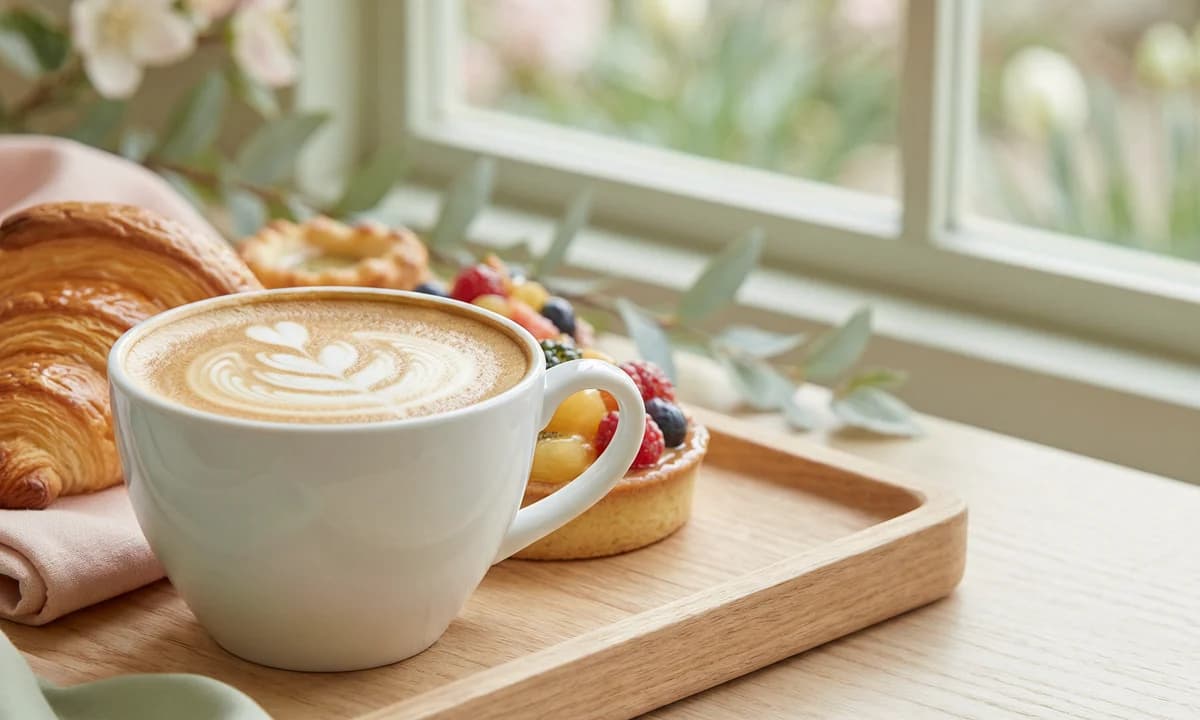
Write a short brief that states subject, setting, palette, and what must stay true (for example: ceramic cup centered, cream and sage palette, soft window light, no busy typography in the scene). Generate a single image first. Judge it as a stakeholder would: Does the product read clearly? Is the mood right? Would you be embarrassed to put this in a deck?
If the hero fails, change one variable at a time—prompt, style, or aspect—rather than jumping straight to four variants. Batching a weak hero only multiplies the same mistake. In Image Studio, stick to the available aspect ratios for this surface: 1:1, 2:3, and 3:2. If you later need marketplace listing ratios such as 9:16 or 16:9 as part of a commerce pack, that is a separate Commerce workflow, not an automatic crop of the same file.
Step 3 — Expand with batch variants from the approved direction
Once the hero direction is acceptable, switch to Batch and generate two to four variants. Keep the same visual language in the prompt: same product identity, same palette words, same lighting intent. Change only what the channel needs—slightly different prop placement, tighter crop language, or an alternate angle—so reviewers compare useful options instead of unrelated styles.
Credit behavior is straightforward and worth budgeting before you click Generate: each successful standard image uses 1 credit. In batch mode, each successful variant uses 1 credit. Failed generations should not consume the success-based image credit. Email-verified free accounts receive starter credits at signup; paid plans add monthly credits—check Pricing for current numbers.
- Batch size in Image Studio: 2, 3, or 4 variants.
- Keep palette and product framing stable across the pack.
- Download keepers to Library so the set stays findable after the chat thread dies.
Step 4 — Review like a concept pack, not a slot machine
Present the set as a small package: one hero, a few variants, and a one-line note on intended use (for example, “1:1 social concepts for spring menu launch”). Ask reviewers a narrow question—“Is this direction worth a photo shoot / designer pass?”—instead of “Which random image do you like?”
Be honest about what PiPiPix does not include today. There is no built-in stakeholder comment thread or approval workflow on share pages. Team permissions and in-app review comments are not part of the current product. If you need comments, export the images and review them in the tool your team already uses. Public Community pages exist for approved gallery items; they are not a substitute for a client review system.
When you still need a full design sprint
Stop the AI concept loop and move to a full sprint when the next risk is production, not direction: packaging dielines, regulated claims, complex retouching, motion, or multi-market brand systems. AI concept packs help you decide earlier; they do not remove the need for rights clearance on reference photos, human QA on labels and typography, or channel-specific production specs.
If your job is e-commerce listing kits with multiple slot types, use the Commerce workspace rather than forcing Image Studio to imitate a full listing pipeline. If your job is multi-page narrative with a stable cast, use the Storybook workflow instead of batch image variants.
A short checklist before you spend the next credits
Run this list once before another generate cycle. It is deliberately boring—that is the point.
- One sentence brief: subject, palette, mood, must-keep facts.
- One hero still approved (or explicitly rejected) before batching.
- Same style preset and stable prompt facts across variants.
- Aspect ratio chosen for the actual placement (1:1 / 2:3 / 3:2 in Image Studio).
- Keepers saved to Library; rejects discarded without more “just one more” loops.
- Commercial use and plan limits checked on Pricing / Terms before client delivery.
Start with a template and one hero
Open the Social campaign pack template, generate a single hero that proves the direction, then expand only after that still earns a yes. The goal is a coherent concept pack you can defend in a meeting—not a folder of stylish orphans.